Risk controls
You can create controls for a risk, or you can assign controls already created to a risk to be performed at regular intervals to prevent or minimize the risk. By using controls, you implement an internal control system (ICS).
Types:
In Aeneis there are two types of controls by default:
-
HQ control: Headquarters controls are specified by the headquarters. HQ controls apply to each Legal Entity of the company.
-
LE control: Legal Entity Controls are defined by the legal entity and apply only within that legal entity. LE controls are derived from an HQ control.
Create HQ control
-
Select or open the risk for which you want to create a control
-
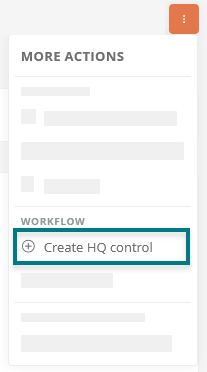
Open the context menu and create an HQ control:
-
In the dialog box, define the basic properties of the HQ control
Siehe auch: All properties are described under Configure controls via properties.
-
In the dialog box, configure regular control, monitoring, and review tasks, if necessary
-
Click Create HQ Control
Result:
The HQ control has been created, and you are taken directly to the corresponding object format. If you have configured tasks, the first task for the HQ control will be created automatically at the next execution time of the associated service. The task is then automatically generated again and again at the set frequency and assigned to the appropriate person. Those responsible are informed via their notifications in the Portal and by email.
Next steps:
Once you have created and configured the HQ control, you can derive an LE control. The LE control is based on the HQ control and specifies the control for the legal entity for which the LE control is generated.
Create LE control
-
Select or open an HQ control from which you want to derive an LE control
-
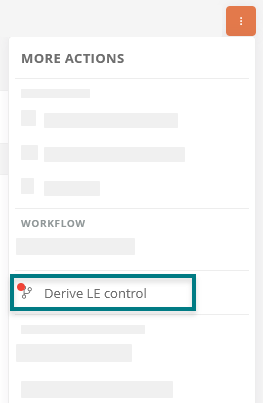
Open the context menu and derive a new LE control:
-
In the dialog box, define the basic properties of the LE control
Siehe auch: All properties are described under Configure controls via properties.
-
In the dialog box, configure regular control, monitoring, and review tasks, if necessary
-
Click Create LE Control
Result:
The control has been created, and you are taken directly to the corresponding object format. If you have configured tasks, the first task for the control will be created automatically the next time the associated service runs. The task is then automatically generated again and again at the set frequency and assigned to the appropriate person. Those responsible are informed via their notifications in the Portal and by email.
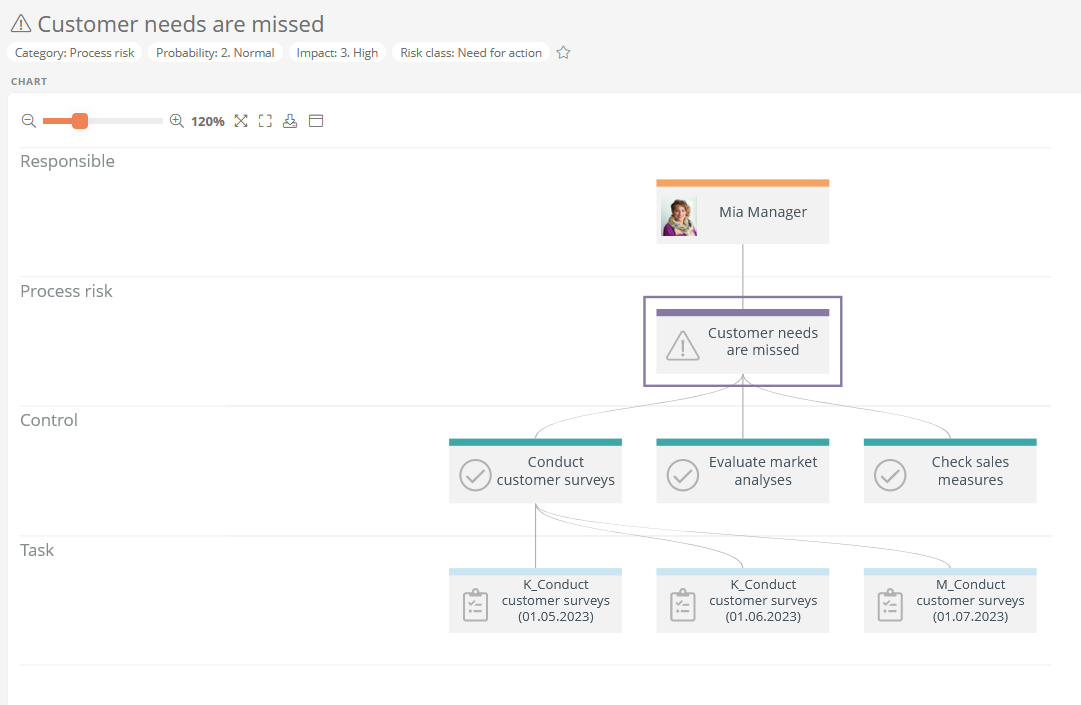
Set up a regular task for controls
If necessary, when creating controls via the creation dialog, you can specify the following regular tasks, which will be automatically recreated at the specified interval:
-
Regular control tasks: If you want tasks to be created automatically on a regular basis in order to implement the control, fill in the following properties. The task is then automatically generated at the set frequency and assigned to the responsibles.
-
Regular monitoring tasks: If you want the control to be monitored regularly and monitoring tasks to be created automatically, fill in the following properties. The task is then automatically generated at the set frequency and assigned to the responsibles.
-
Regular review tasks: If you want the control to be reviewed regularly and for review tasks to be created automatically, fill in the following properties. The review task is then automatically generated at the specified frequency and assigned to the person responsible.
Configure properties of regular tasks
You can configure the properties of regular tasks either via the control creation dialog or via the sidebar.
Hinweis: To ensure that the task is performed regularly, each of the properties described below must be specified for the respective task type.
| Property | Description |
|---|---|
| Control tasks / Monitoring tasks / Review tasks required | Select this option if tasks are required to perform the control. |
| Responsibility for Control tasks / Monitoring tasks / Review tasks | Enter the name of the employee or role responsible for the task here. |
| Start date for Control tasks / Monitoring tasks / Review tasks | Select a start date here. The task should then be performed for the first time when date is reached. |
| Processing period for control tasks / Monitoring tasks / Review tasks | Select here whether the task should be completed immediately, within 15 days, or within 30 days. |
| Monitoring frequency / Review frequency |
Here, you specify the interval at which the task should be generated. By default, the following frequencies are available here:
Hinweis: Intervals are also defined by default in the Control frequency master data folder for irregular control frequencies (e.g., if required, at project completion, at occurrence). If you only carry out irregular controls, do not automate the tasks. |
Control frequencies for automated tasks
Once you have filled in all the required properties for a regular task, Aeneis automatically creates the first task at the next execution time of the associated service and assigns it to the person responsible. The task is then generated repeatedly at that frequency interval.
All available frequencies and their properties are maintained in the Control frequency master data folder.
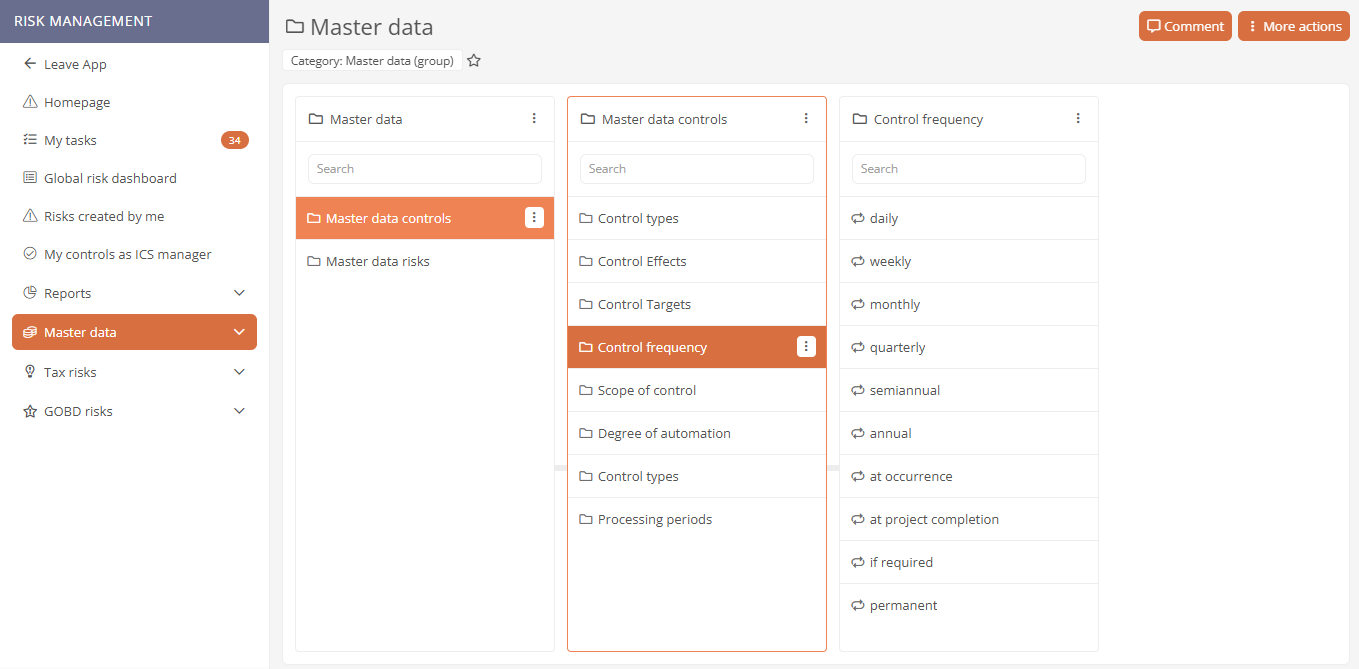
Siehe auch: Define value selections for controls
Configure controls via properties
You can configure controls using the properties. These properties apply equally to HQ controls and LE controls; exceptions are indicated.
| Property | Description |
|---|---|
| General | |
| Control ID | Enter a control ID here. |
| Name | Enter the name of the control. |
| Control description | Enter a description of the control. |
| Control frequency | Select here the frequency at which the control is to be performed. |
| Degree of automation | Select here whether the control is automatic, semi-automatic or manual. |
| Controlled risk | Here, the risk for which the control was created is referenced. You can reference additional risks. |
| Derived from | Here, the HQ control is referenced, from which the LE control was derived. |
| Legally relevant | Use the switch to specify whether the control is legally relevant. |
| Contractually relevant | Use the switch to specify whether the control is contractually relevant. |
| Best practice relevant | Use the switch to specify whether the control is relevant to best practices. |
| Derived from risk analysis | Use the switch to specify whether the control was derived from a risk analysis. |
| Statement measures implementation | Here you can document details regarding the implementation of the measures. |
| Responsibilities | |
| Control responsibility | Select the person responsible for the control here. |
| Other attributes | |
| Control effect |
Select the control effect. Here you can define the following control functions:
|
| Proof of control | Enter how the proof of control is to be provided. |
| Scope of control | Select whether every item should be checked in the control or only randomly every nth item. |
| Control type | Select one or more control types for the control. |
| Control target | Select what is to be achieved with the control. |
| Archiving reason | Once you have archived the control, the reason for archiving will be carried over here. |
| Archiving date | If you have archived the control, the archiving date will be entered here. |
| Key control | You can enter a key control here. |
| Type of control |
The control type is specified here. There are the following types of controls:
|
| Task | The tasks created through the process linked to the parent risk are listed here. |
| Legal Entity | The legal entity is stored here for LE controls. |
| Implementation date | Here, you specify the deadline by which the control must be completed. |
| Requested target date | Enter the requested target date here. |
| Assigned measures | Here you can reference ISMS-specific tasks. |
| Measure type |
Here you can specify the following types of measures:
|
| Information security features |
Here, you can configure the following information security features:
|
| Predecessor assignment | Here you can reference a previous control. |
| Operability | Here you can enter objects of the Operability category. |
| Purpose | Here, describe the purpose of the control. |
| Concepts for cybersecurity |
You can submit a cybersecurity plan here. The following concepts are available:
|
| Security domains |
You can enter a security domain here. The following security domains are available:
|
Define value selections for controls
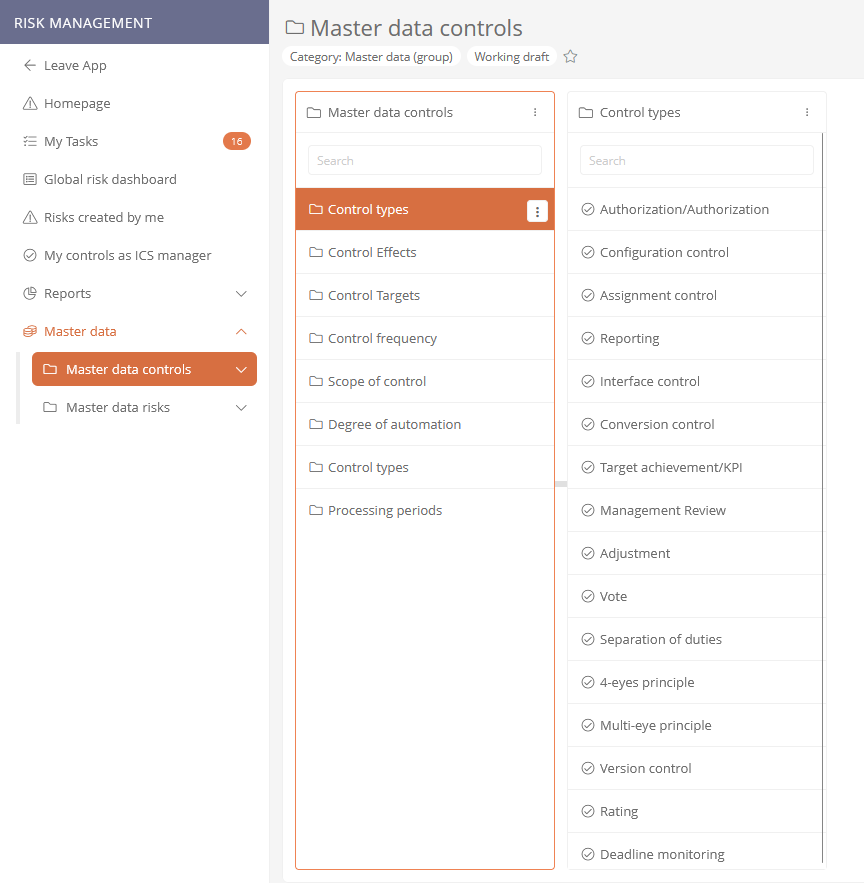
Under Master data controls, you will find all the attributes of a control for which value selections can be predefined. You can use the properties to customize the respective attribute values.