User profile settings
To open your user settings click in the menu bar on your user name:

Hinweis: In order for administrators to always be clear that they, unlike other users, are reported all possible data and operations in the Portal, the admin status is highlighted with a red banderole on the profile picture.
You can make the following settings for your user in the User settings tab:
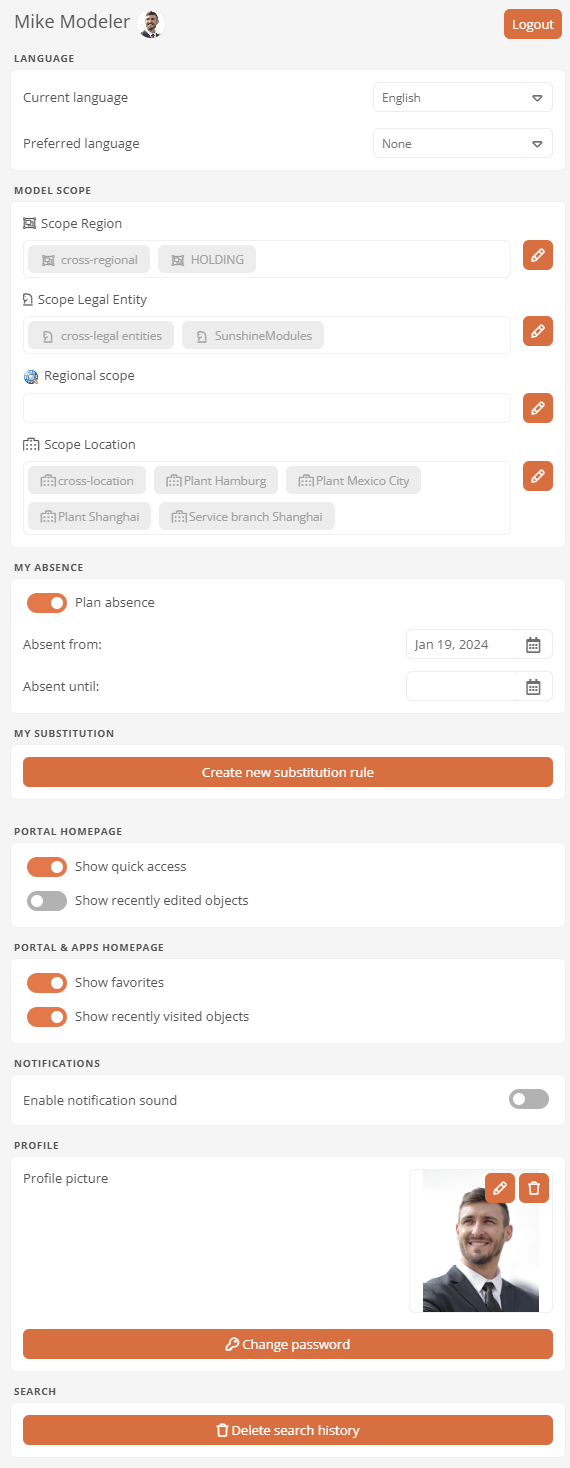
| Property | Description |
|---|---|
| Language |
|
| Model scope |
Here you can set the scope. The Portal will then only display content that is valid for this scope. Siehe auch: Scopes |
| My absence |
Here you can set absences and specify the period for which you are absent. Siehe auch: Set absence |
| My substitution |
Assign your substitute here. With a substitution rule, you determine the extent to which he/she may represent you. Siehe auch: Set up substitution |
| Homepage | Here you can set which cards are displayed on the homepage in the Portal. |
| Portal homepage & Apps | Here you can set which cards are displayed on the homepage both in the Portal and in the apps. |
| Notifications |
Here you can set whether a notification sound is played when you receive a new notification in the Portal. Siehe auch: Notifications |
| Profile |
|
| Use extended usage data collection |
If you enable this option, you will be making an important contribution to the continuous improvement and further development of the software. Please note that in addition to the standard usage data, your user ID and object names (e.g. of processes or diagrams) are transmitted to intellior in pseudonymized form. Voraussetzung: The Use usage data collection option is enabled in the database properties. |
| Search | This button allows you to delete your search history in the Portal. Your saved searches will not be affected. |
Configure default display of cards and online status
As an administrator, you can use the job Tiles on homepage / Set default online status for users to specify by default for all users whether they can see the online status of their colleagues and how cards are initially displayed on their homepage.
Achtung: When you run the job, the individual card display of individual users is overwritten.
Instructions:
-
Open the SystemAdministration
-
Navigate to the job Tiles on homepage / Set default online status for users
-
Make sure that the job is enabled
-
Store a valid cron expression or trigger in the job configuration
-
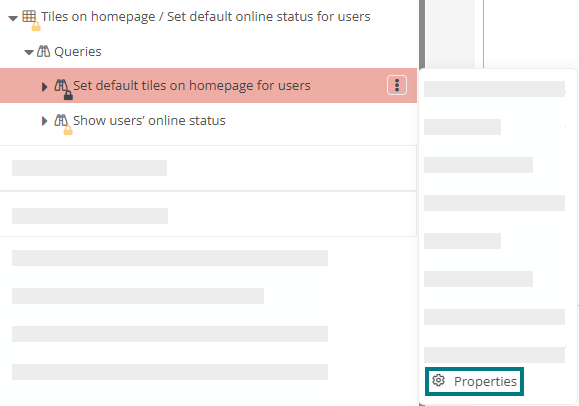
Open the properties of the job query Set default tiles on homepage for users:
-
Navigate to the Configuration properties group
-
In the macro, adjust the values true and false for the variables for the card display accordingly:
Copy#set($showFavoritesOnHomepage=true)
#set($showLastVisitedOnHomepage=false)
#set($showLastModifiedOnHomepage=true)
#set($showQuickstartsOnHomepage=false)Variable Description $showFavoritesOnHomepage Here you can set whether favorites are displayed as cards by default. $showLastVisitedOnHomepage Here you can set whether recently visited objects are displayed as cards by default. $showLastModifiedOnHomepage Here you can set whether last edited objects are displayed as cards by default. $showQuickstartsOnHomepage Here you can set whether quickstarts are displayed as cards by default.
-
Open the properties of the job query Show users’ online status
-
In the macro, adjust the values true and false for the variable
$showOnlineStatus -
Save your changes
-
Wait until the Default Job Creator job has been executed again
-
Open the context menu of the job and click on Execute job
Result:
-
The job is executed.
-
On the homepages of the Portal and the apps, each user initially sees the card display according to the variable values defined in the job query.
-
The online status is displayed by default according to the defined variable value in the job query.
Hinweis: Each user can configure their own card display and change the online status display via the user settings.
 Related Topics