Create content via quickstarts
Aeneis lets you create new content in the Portal directly on the homepage. Click on a quickstart to create a new diagram or a new master data object:

Siehe auch: You can find out how to create model content via other areas of the Portal and enrich it with data under Model contents.
Create process diagram
BPMN diagrams are used to graphically represent processes in a company according to BPMN (Business Process Model and Notation). A process represents a work procedure within the company. When you create a BPMN diagram, you always create it for one process. You can continue modeling the process in further steps and, for example, provide it with a description. In processes you can link responsible persons (also via their role), other processes, documents, IT systems and much more.
-
To create a BPMN diagram via the homepage, click on the quickstart Create process diagram. A window opens where you can enter the name and location for the process:
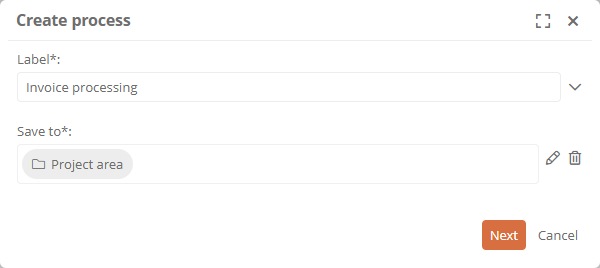
-
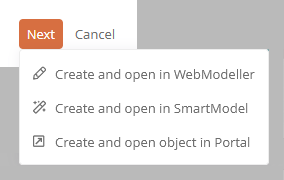
Click Next and choose where to open the process and how to proceed:
-
Create and open in WebModeller: The process is created and opened in a new browser tab in the WebModeller. In the WebModeller you can graphically model the BPMN diagram for the process. See BPMN diagrams.
-
Create and open in SmartModel: The process is created and opened in the portal in the SmartModel view. In the SmartModel view, you can model the BPMN diagram for the process in tabular form. See SmartModel and Modeling in manual mode.
-
Create and open object in Portal: The process is created and opened in the Portal in the Default view.
-
Siehe auch: For more detailed information about BPMN diagrams, see BPMN diagrams.
Create freehand diagram
Freehand diagrams are used to graphically depict processes and structures in a company. When modeling freehand diagrams, you can freely place shapes and forms. Each shape can be linked to any object in the enterprise model. When you create a freehand diagram, it is always created for an object, such as a process or process group. When you create a freehand diagram using the quickstarts on the homepage, a process group is automatically created for which the freehand diagram is created. In the WebModeller you can create freehand diagrams also for process folders.
-
To create a freehand diagram using the quickstart on the homepage, click on the quickstart. A window opens where you can enter the name and location for the process group:
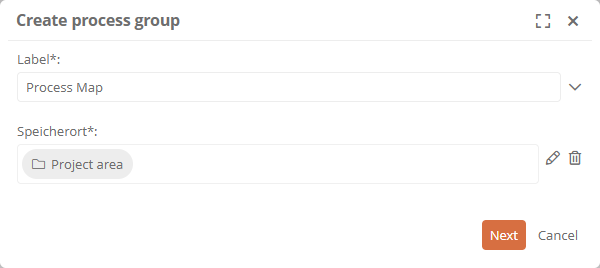
-
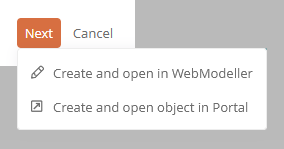
Click Next and choose where to open the process group and how to proceed:
-
Create and open in WebModeller: The process group is created and opened in a new browser tab in the WebModeller. In the WebModeller you can model the freehand diagram for the process group. See also Create freehand diagram.
-
Create and open object in Portal: The process group is created and opened in the Portal in the Default view.
-
Siehe auch: For more detailed information about freehand diagrams, see Freehand diagrams.
Create master data
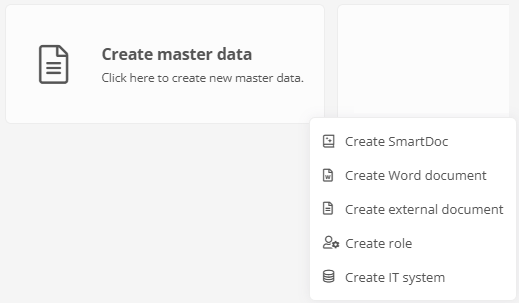
To create master data via the homepage, click on the corresponding quickstart. You can use the menu to select the type of master data you want to create. Use the workflow form to create the object and enter important initial key data. As soon as you have created the master data object, it is opened in the Portal.
Create documents
You can create the following document types via the quickstart Create master data:
-
SmartDoc: SmartDocs are internal documents that are only located and available in the Portal. SmartDocs content is maintained and displayed in Aeneis.
When you create a SmartDoc, a window opens where you can enter the name and location for the SmartDoc.
-
External document: External documents are objects in which files can be attached that are created and maintained outside the Aeneis Portal, such as a PDF document. This allows external documents to be integrated into the enterprise model and managed. The contents of external documents are maintained in the file itself outside of Aeneis.
When you create an external document, a window opens where you can enter the name and location for the external document and attach a file or enter the link to a document.
-
Word document: A Word document is an external document. When creating a Word document, you select a template that will be copied and attached for the document. You can then download the copy and adapt it or replace it with your own Word document.
When you create a Word document, a window opens where you can select a template that will be copied for the document. After that, you can enter the name and location of the document.
Siehe auch: For more on external documents and SmartDocs, see Documents and document types.
Create role
Use the corresponding menu item to open the form in which you can create a new role. Enter the following key data for the role:
-
Role name: Give the role a name
-
Role description: Describe the function of the role within your organization
-
Storage location: Specify where the new role should be saved in the model overview
-
Assigned employees: Assign employees to the role
-
Associated organizational unit: Enter the organizational unit to which the role belongs.
Create IT system
Use the corresponding menu item to open the form that you can use to create new IT systems. Enter the name and storage location of the new IT system there.
 Related Topics